
Getting Started
Welcome to Awentail! This guide will walk you through setting up your first AI assistant — from account registration to embedding on your website.
Create an account
- Go to app.awentail.com/login
- Sign up with email or use Google Sign-In for one-click login
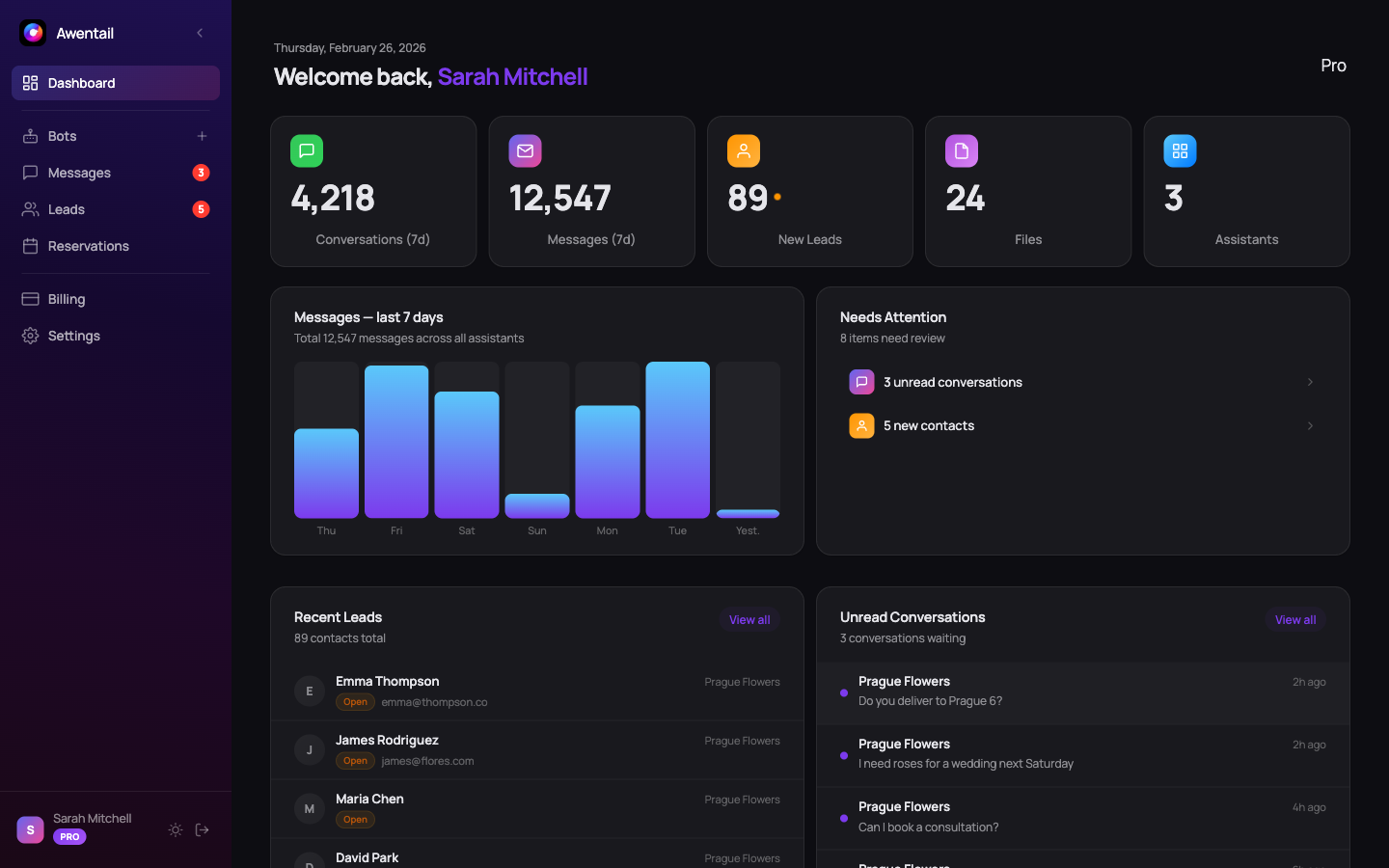
- You’ll land on your Dashboard — your hub for everything Awentail
The free plan gives you 1 AI assistant and 100 conversations per month. No credit card required.
Set up your first assistant
Click “New assistant” on the Dashboard or Assistants page. You’ll go through the Assistant Setup Wizard — a quick 3-step process.
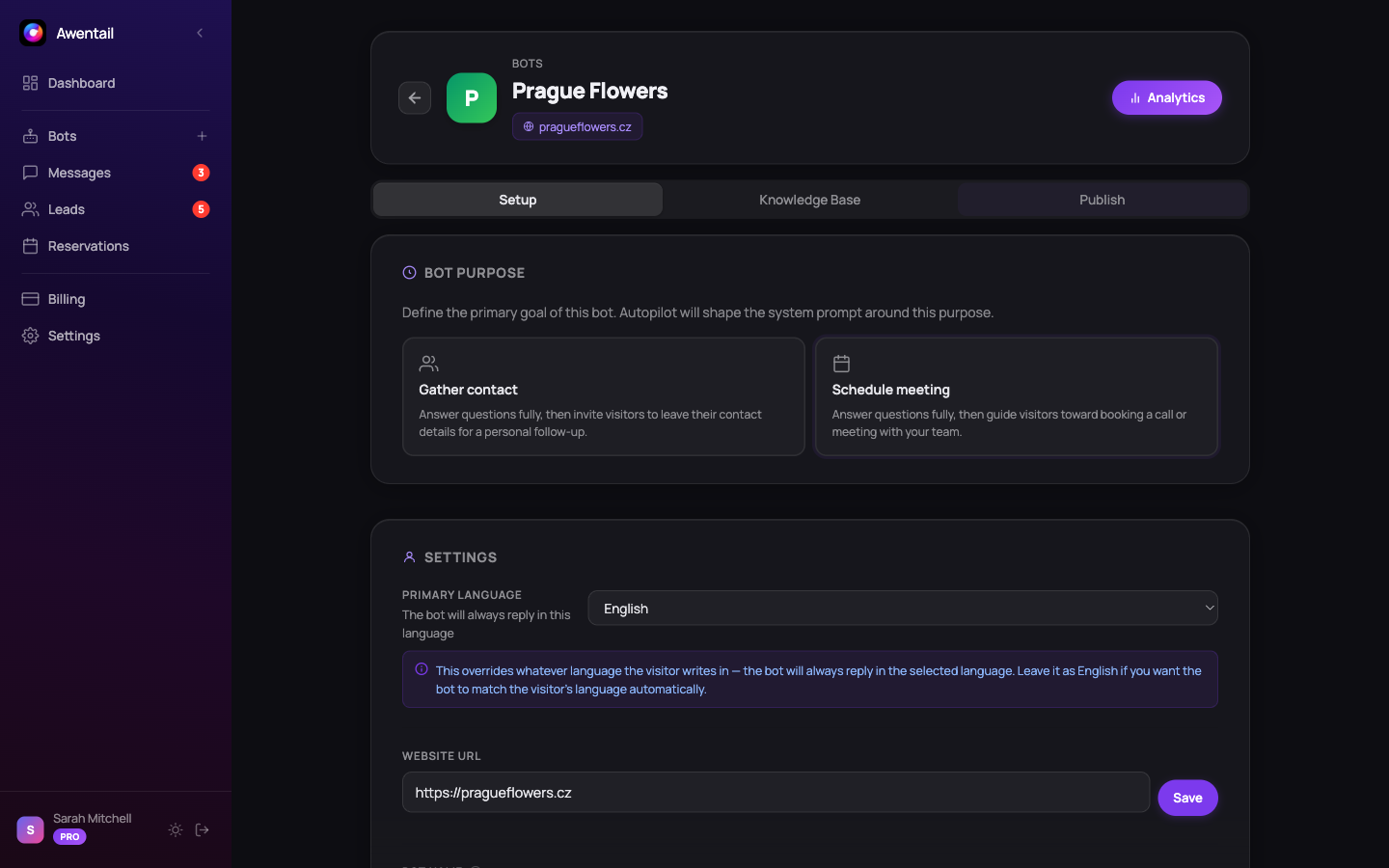
Step 1: Name and personality
- Assistant name — What your visitors will see (e.g. “Support”, “Sales Assistant”)
- System prompt — Instructions that define how the assistant responds. Think of it as the assistant’s personality. Example:
You are a helpful customer support agent for Acme Corp.
Answer questions about our products and pricing.
Be friendly and concise.- Welcome message — The first message visitors see when they open the chat widget
Step 2: Knowledge base
Upload your documents to give the assistant context:
- File upload — PDF, DOCX, TXT, CSV
- Web scraping — Enter a URL and Awentail extracts the text content
The assistant uses this content to answer questions accurately using RAG (Retrieval-Augmented Generation).
Step 3: Widget settings
Customize the look of the chat widget on your site:
- Colors — Match your brand
- Position — Bottom-right or bottom-left
- Auto-open — Optionally open the widget after a delay
Embed on your website
After setting up the assistant, go to the Widget tab and copy the embed code:
<script
  src="https://app.awentail.com/widget.js"
  data-bot-id="your-bot-id"
  defer>
</script>
Paste it before the closing </body> tag on any page. That’s it — your assistant is live!
What’s next?
- Upload more documents to expand your assistant’s knowledge
- Customize the widget — appearance and behavior
- Set up contact capture to turn conversations into contacts
- Enable appointment booking for scheduling directly from chat
- Explore analytics to see what visitors are asking